
Troubleshooting Virtual Memory Downscalling as a System Tweak from Corrupted Disk and Files
Case of X-Plane 12
Arya Yudhistira
6/10/20262 min read
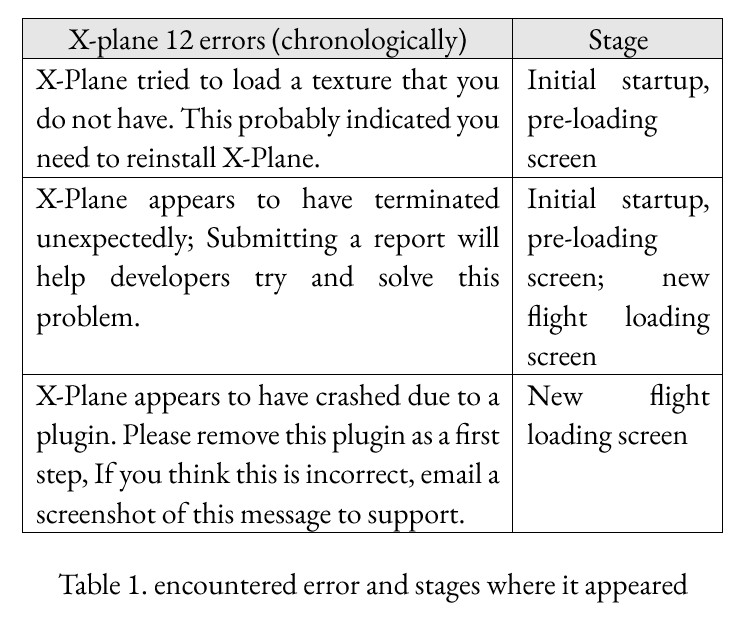
The purpose of this article is to explain a troubleshooting related to an insufficient memory report whose implications are hefty processing upon simple tasks, software complaints with minimal simultaneous tasks running, browser ran out of memory (‘Aw Snap!’ error 5), and prominent to this case: X-Plane 12 unable to operate. To see X-Plane error messages, see Table 1.
Antebellum to these errors, an attempt to transfer SD card files through a USB 2.0 card reader thawed upon importing full-scale sensor .jpg files that only managed to import half of an album. Windows reported Error 0x80070570 followed by a “You Need to Format the Disk in …” complaint.
Six file recovery softwares were installed to recover pictures held captive inside the disk that is inaccessible by the user, yet was visible on each software. Up to six softwares were required due to unrelated payment and technical recovery concerns, which pinpointed the beginning of the issue.
A chkdsk X: /f and /x fix was attempted through the command prompt, but it made no repairs. Fixing the disk through Disk Management partitions also failed since the disk was recognized as RAW, meaning it cannot recognize NTFS, FAT32, or other system files.
An attempt to recover Windows memory management functions was then made through DISM /Online /Cleanup-Image /RestoreHealth and followed by the sfc /scannow function in the command prompt. Some early attempts yield stuck scan bars at around 60-70%. After restarting the computer a few times, the process managed to complete and handed over the corrupted system file found by the Windows Resource Protection, since the CTRL + C command to revoke the scan process does not work. Another workaround to use the net stop wuauserv and net start bits function made no difference.
To avoid uninstalling X-Plane 12’s 70 GB base game, a file integrity check was assessed through Steam alongside creating a local backup file worth 55 GB. Seeing no improvements, the next thing to do was to try to diagnose whether it’s a domestic X-Plane installation issue or a defect in the system.
After Chrome with one landing page tab crashed when being paired with Photoshop, it became light that it was surely a case of the latter above. This realization came after a redundant clean reinstall of X-Plane 12 (and backup) was made.
Excessive 125+ GB of redundancy in storage consumption made sure that the core issue had something to do with the computer’s RAM.
Troubleshooting was rather anticlimactic. The following is a discovery regarding RAM alternation within the System Properties. An error in system configuration has set the virtual memory usage from 13 GB of RAM down to 500 MB. This setting was accessed from Advanced System Settings > Advanced > ‘Performance’ Settings > Advanced > ‘Virtual Memory’ Change.
Reverting the correct RAM partition back to 26 times the tweaked value solves the issue. The following is a collection of X-Plane 12 errors encountered:
It is worth mentioning that the first time since the six data recovery software have been installed, it was completely impossible to pass the loading screen. After several attempts, it was possible to access only the menu screen. All features were able to be adjusted, including selecting airports, aircraft, weather, date, and game configurations. Even with the minimum-most settings, the application will still not start. Currently, this issue has been resolved and the six recovery software have been uninstalled.